Features
High-resolution zoomable images
IIIF compatible
Exhibit is built on IIIF (International Image Interoperability Framework), the open standard used by galleries, libraries, archives, and museums worldwide. Bring in high-resolution images, 3D models, audio and video in three ways: browse ready-to-use items in Discover, paste any IIIF manifest URL, or upload your own files on a self-hosted instance and Exhibit will create the IIIF manifests for you.
Exhibit supports IIIF Presentation API 2.0 and 3.0 manifests and collections. New to IIIF? We can help.

Discover
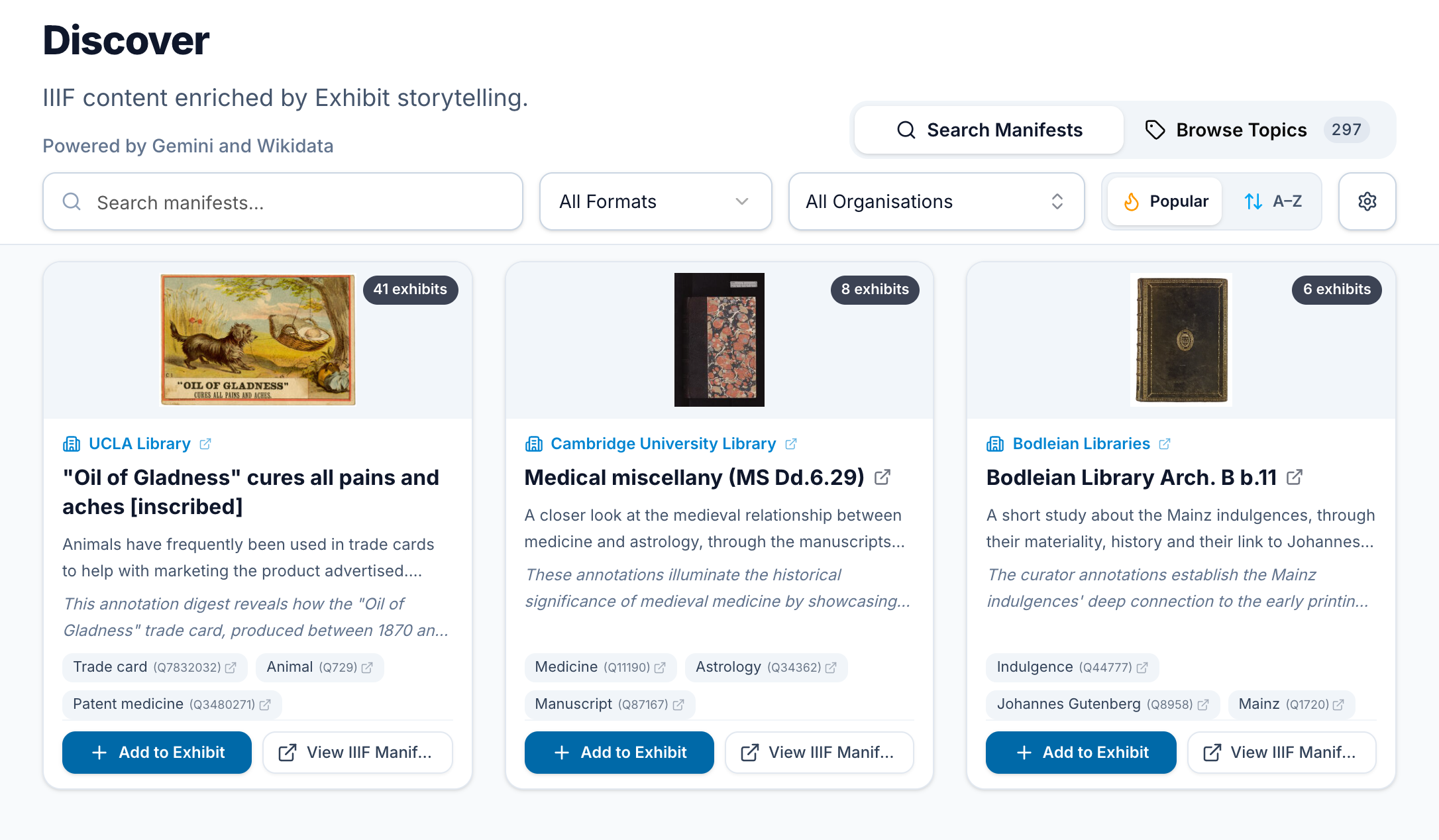
Find ready-to-use items from galleries, libraries, archives and museums around the world, without hunting for IIIF manifest links. Search Discover by keyword or theme, filter by format (images, 3D models, audio and video) or by institution, and browse thousands of topics linked to Wikidata.
Exhibit uses AI to summarise what authors have written about each item in public exhibits and to tag its key subjects. This makes items easier to find even when catalogue records are sparse. Each result shows how many exhibits use the item, a summary of what authors highlight, and a link back to the holding institution’s catalogue.
Click “Add to Exhibit” on any result to open an item in a new exhibit. Find out more in our Discover guide.
3D
Bring objects to life with interactive 3D models (GLB format, via IIIF). Visitors can rotate, pan and zoom to explore an object from every angle, while you set the viewpoints your story moves between.
Double-click anywhere on a model to pin an annotation to that exact spot, perfect for pointing out details or setting quiz questions. If a model is animated, you can choose the exact moment to show at each step.
Audio and video
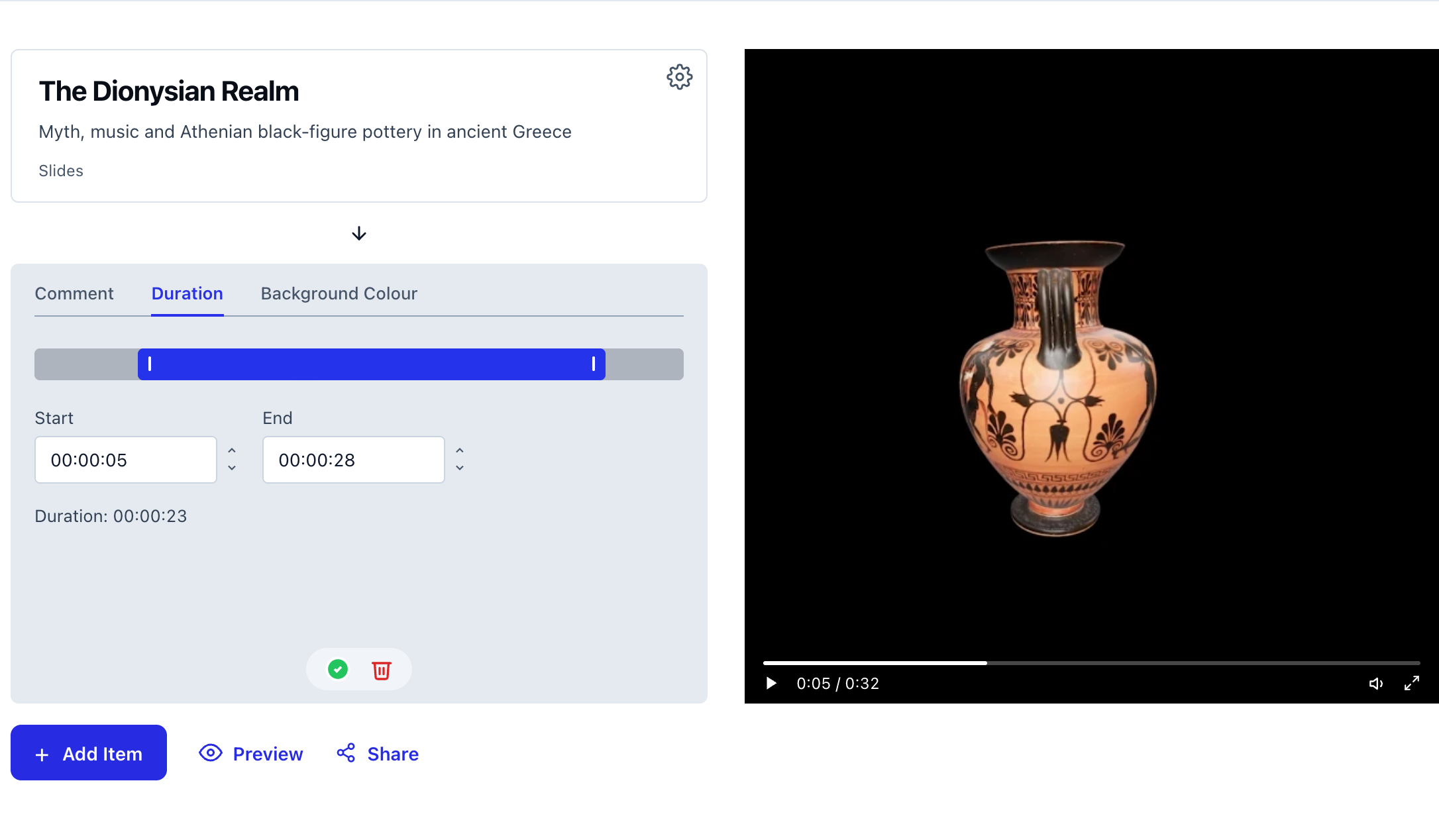
Include oral histories, music, lectures and archival film alongside images and 3D models in the same exhibit. Set a start and end time for each step to highlight a specific moment in a recording. When visitors reach that step, Exhibit jumps straight to your chosen clip and plays it alongside your commentary.
Bring in audio and video using IIIF Presentation 3.0 manifests, or upload MP3 and MP4 files directly on a self-hosted instance. Find out more in our audio and video guide.
Easy-to-use editor
Anyone can build an exhibit in the browser, with no technical skills needed. Your work saves automatically as you go, and you can preview it at any time.
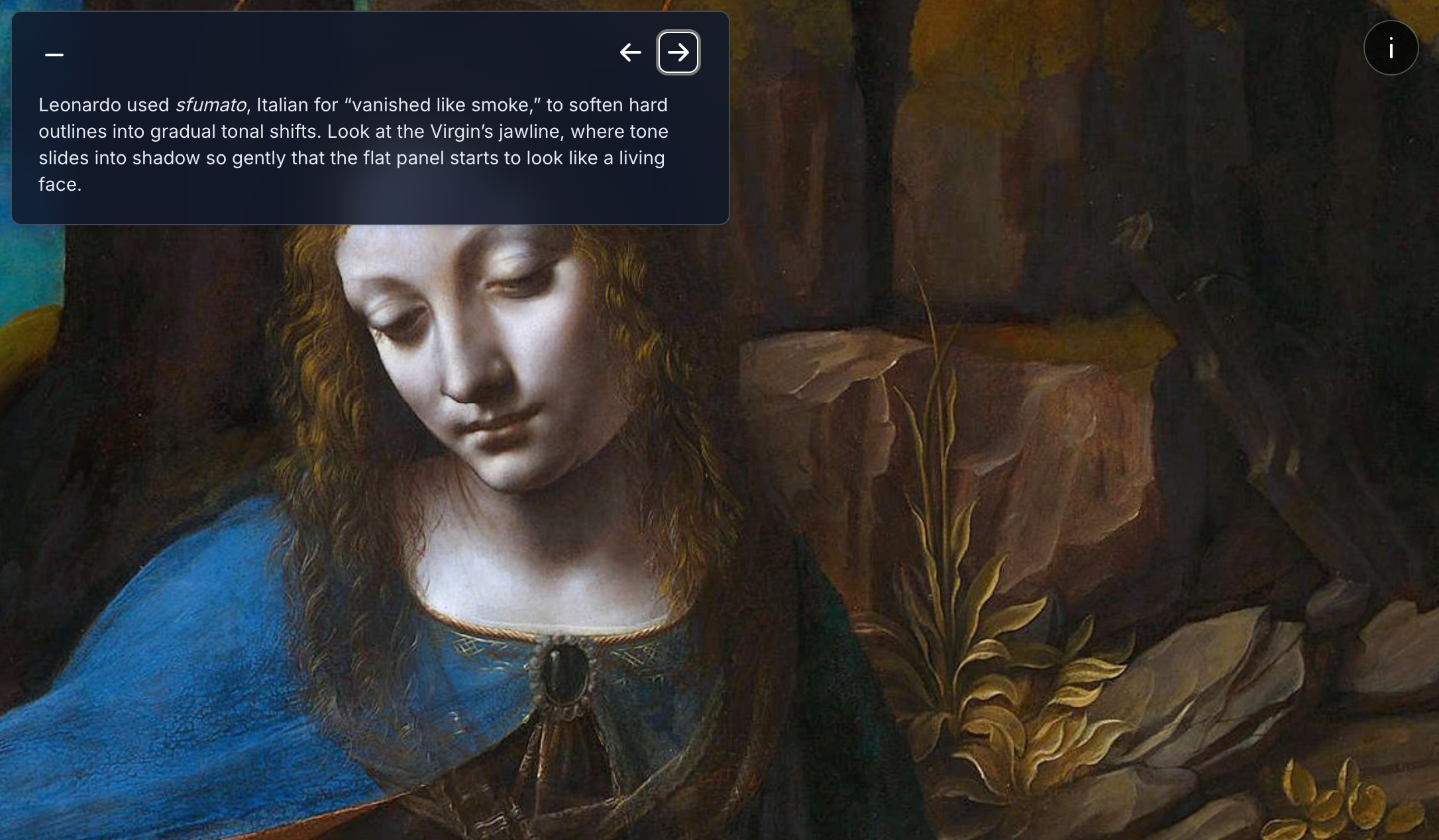
Frame the exact part of an image, angle of a 3D model or moment in an audio or video clip, and Exhibit animates smoothly between them, guiding visitors through your story. Add commentary with simple formatting, set background colours for each step, and choose a light or dark style. Each item’s source and rights information appears automatically in a metadata panel.

Templates
Duplication

Password protection

Embedding
Put your exhibit wherever your audience already is. Copy a ready-made embed code into your website, online catalogue, blog or WordPress site, or into learning platforms such as Moodle, Canvas and Blackboard. Find out more in our sharing and embedding guide.
Collections can also add “Add to Exhibit” buttons to their own item pages, so visitors can bring objects straight into a new exhibit.

Accessibility
Exhibits are designed to meet WCAG 2.2 AA, so everyone can explore your collections. Visitors can move through slides, zoom into images and turn 3D models using only a keyboard. Screen readers announce each step as it changes, and animations are reduced for anyone who prefers less motion. Find out more in our guide to creating accessible exhibits.
Gallery wall cards
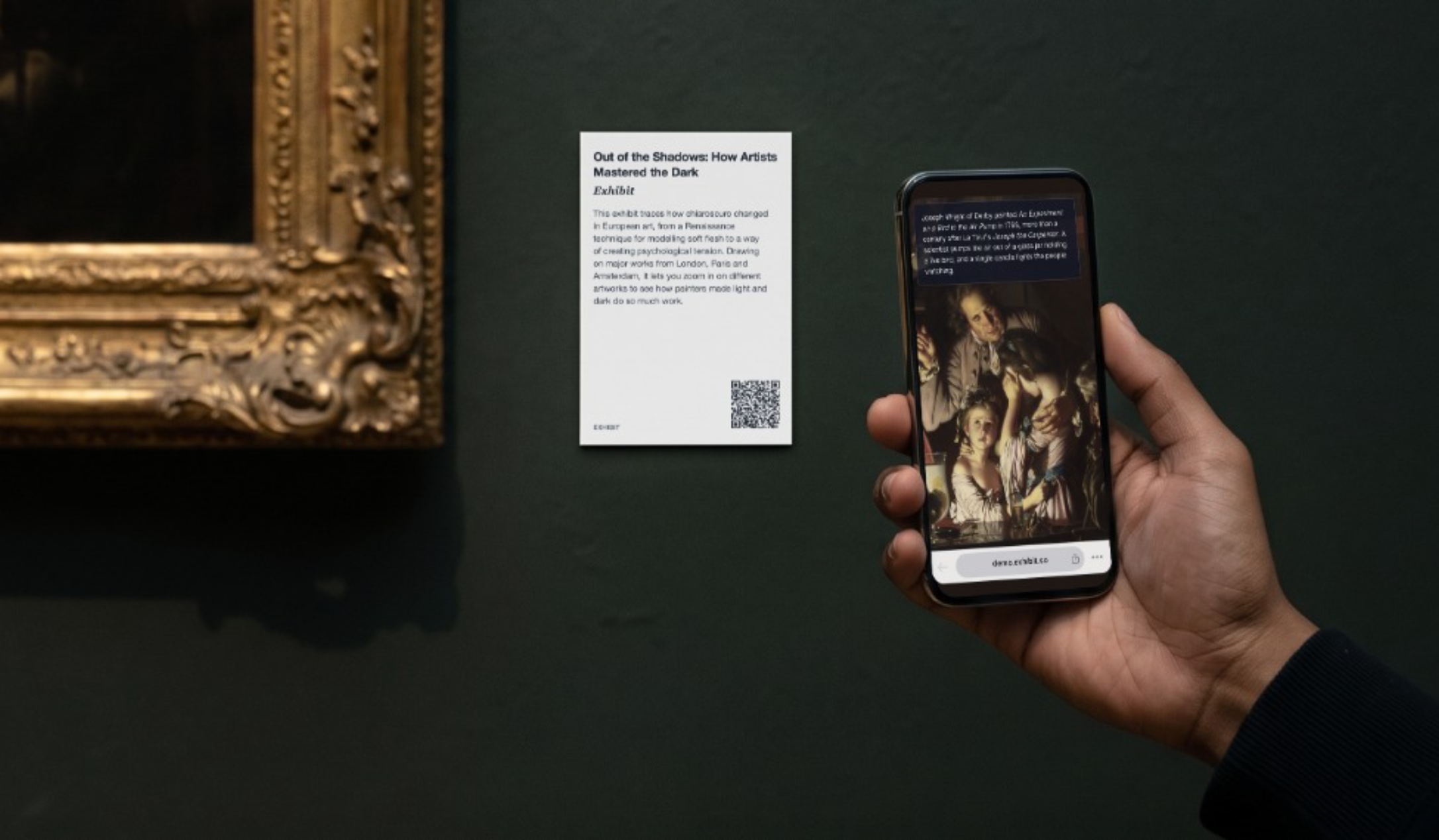
Link the objects on your walls to the stories behind them. Print a wall card with a QR code, and when visitors scan it, your exhibit or the object’s record opens straight in their phone’s browser, with no app to install. Every scan is recorded in your analytics.
Cards come in standard gallery and art-fair sizes, ready to print as a PDF with optional crop marks, a high-resolution PNG or an SVG. Available on self-hosted instances. Find out more.
Ready to get started with Exhibit?
Hosted
Start creating straight away on exhibit.so. It’s free, with nothing to set up — sign in with Google to save exhibits to your account, or create anonymously with no sign-in needed.
Self-hosted
Run your own Exhibit in your Google Cloud account, on your own domain. Self-hosting adds team accounts with shared editing, file uploads with IIIF manifests created for you, printable gallery wall cards, visitor analytics, custom branding and data export.