Settings
When you create a new exhibit, you will be prompted to configure its core settings and metadata. You can update any of these settings at any time while editing your exhibit.
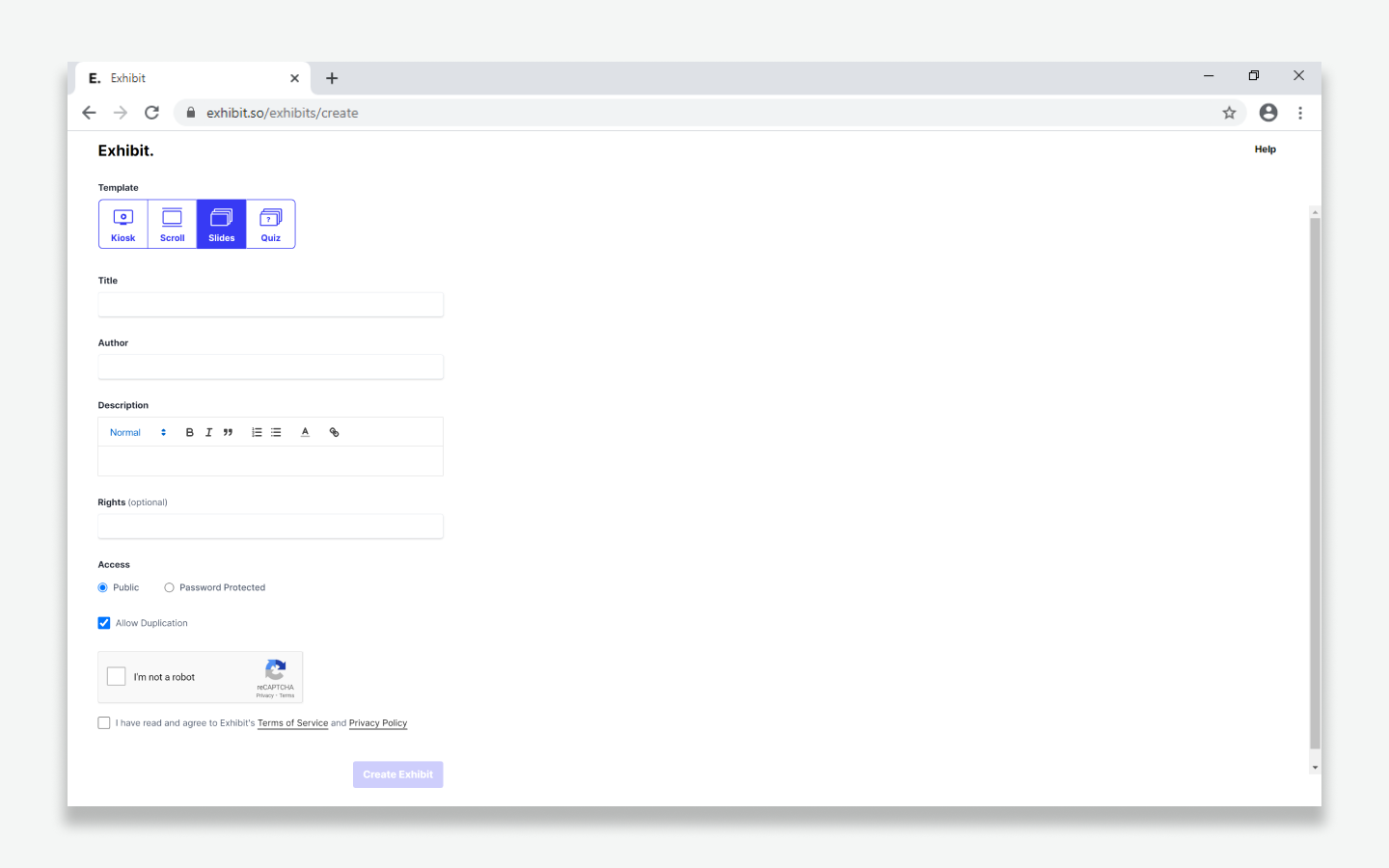
Settings Reference
| Field | Description | Constraints & Details |
|---|---|---|
| Template (required) | The presentation format for your exhibit. | Choose between Slides, Scroll, Kiosk, or Quiz. See Choosing a Template. |
| Title (required) | The title displayed at the top of your exhibit and on the landing page. | Maximum 60 characters. |
| Author (required) | The creator, curator, or institution authoring the exhibit. | Maximum 60 characters. |
| Description (required) | The introductory narrative explaining the subject matter. Supports rich text and links. | Maximum 1,000 characters. Displayed on the Landing Page. |
| Rights (optional) | Copyright statement or licensing terms (e.g. Creative Commons). | Maximum 60 characters. |
| Access | Control who can view the exhibit. | Public (open to anyone with the link) or Password Protected (requires entering a password to view). |
| Enable landing page | Display an introductory splash screen before the exhibit begins. | Checked by default. See Landing Pages. |
| Allow duplication | Allow other users to duplicate your exhibit to create their own versions. | Checked by default. See Duplicate Button. |
| Quiz complete message | Congratulatory message displayed when a visitor answers all questions. | Required only when the Quiz template is selected (maximum 1,000 characters). |
Editing Settings Later
You can modify settings at any time in the Exhibit Editor:
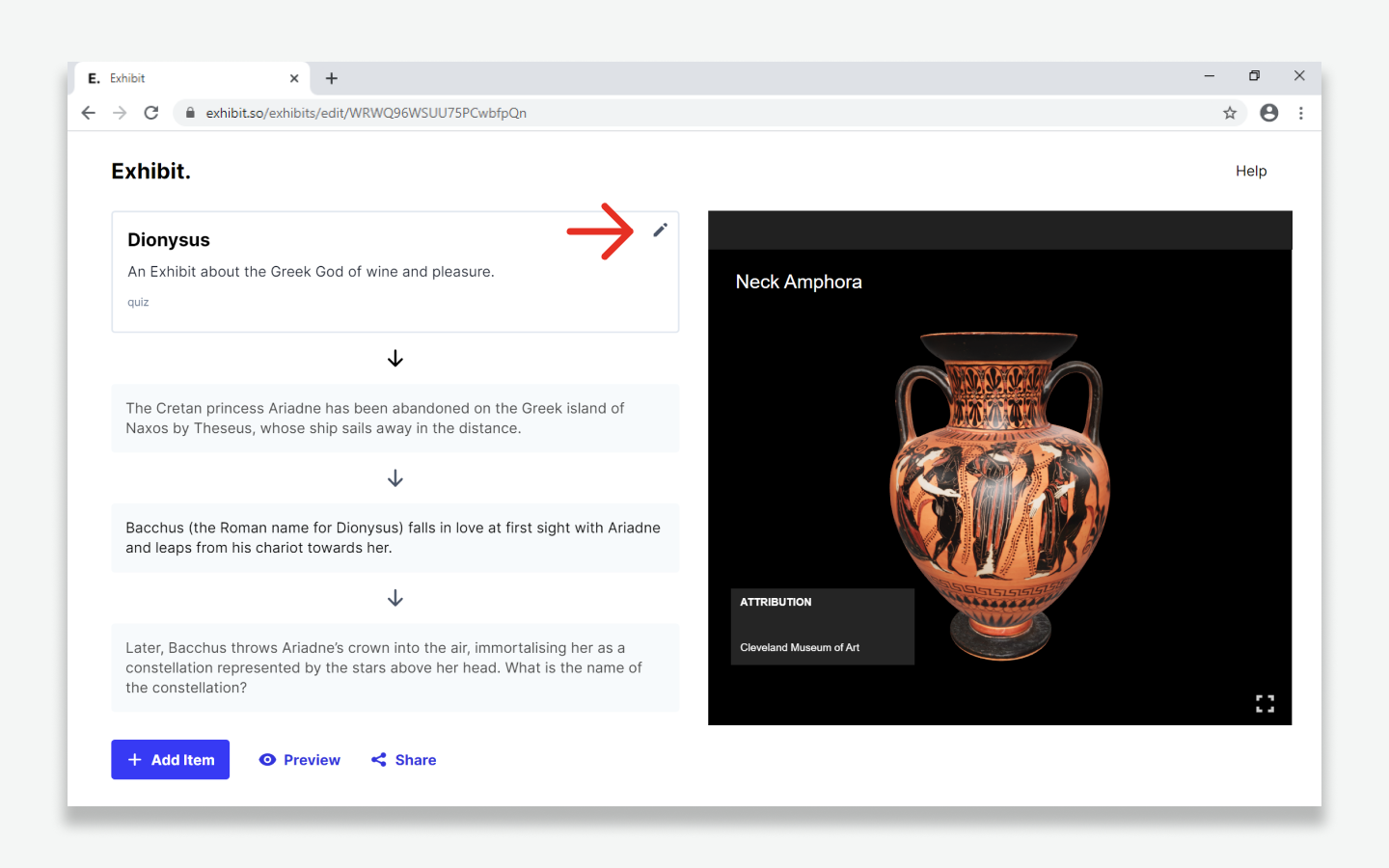
- Click the Edit (pencil) icon on the top overview card in the left column.
- The settings dialogue will open with your current values pre-populated.
- Make your changes and click Submit to save.
Tip
Changing the Template setting instantly converts your exhibit between presentation styles (e.g. from Slides to Scroll) without losing any of your items or annotations.